Having problems with running webpages and other web applications running with Internet Explorer? Here´s a basic troubleshooting which IT supporters could face on a daily level - depending on the position of course...
Doing 1st-Level IT tasks sometimes feels like running in a circle and doing the same things over and over again. One of these tickets can be solved by are clearing the Internet Explorer´s temporary data... Here´s how:
1. Clearing the browser cache
Close the browser, go to Internet options, General and "Delete"
Select all the checkboxes (except the first one doesn´t really matter) and confirm with "Delete".
2. Remove the SSL state
Select another tab, this time "Content" and select "Remove SSL state".
3. Clear credentials
For that step, go to in Control Panel to the Credential Manager and remove all entries.
Once that´s done you can try to open the Internet Explorer again. If there´s still a problem with the website which only involves your browser I would recommend to do an Internet Explorer reset (in Internet Options => Advanced Options).
And the other solution is: Just use Google Chrome ;)
Sometime ago I was searching for a tool to save my most recent entries where I used the clipboard and I didn't find something useful. But now without looking for it, I discovered a great and easy piece of software...
I learned about from an employee of a call center because he had to type certain line over and over again and also had to copy multiple words from one field to another. For that having a bigger clipboard is the best solution.
The software I'm taking about is CLCL and created by Tomoaki Ohno. Available in both English and Japanese it´s available to download at www.nakka.com.
It saves a huge amount of previous clipboard entries, even more than 100 or 1000 if you change the settings. And you select the previous entries easily by pressing Alt + C. A list pops up and you can select what you need. And trust me, you get easily used to that!
Moreover, you create folders within the tool including lines you need quite often in order to reuse them over and over. Ideal for the certain work in a call center. But not just there.
Anyway, a quite useful tool, which I can only recommend.
For many years as an IT technician I was surely aware of the existence of Microsoft OneNote as being part of the Office Suite, but I never saw it actually used - until 2017...
It´s actually a really great tool for personal documentation and databases. I saw it this year the first being used like this. In the department I worked for a 'basic database' was sent around and everyone updated it on its own.
And some point good, but on the other hand it would be better to put the OneNote files on network folders and work with it like this.
Generally it's great to use, especially through the search engine to get the right information quickly. Especially if you have lots of information in your database.
Like a really big notepad database. It's just important you use it for the right purpose. Some things are better to be shared on an intranet knowledge base...
I was recently about to change the name for one of my Google blogs, but I always ran into an error message. Here´s what I tried and how I could finally change the name.
The error message was the following: "Whoops, that´s an error! (bX-tsn23x)". The message appeared shortly after I changed the name of the subdomain of the Google blog. Sometimes I could change the name for a few seconds until it was changed back again.
Here´s what I tried:
- removing all the Chrome browser cache
- opened in the Internet Explorer/Edge
- opened in an incognito windows
It did not solve the issue: But then I found a better idea!
To open Blogger in Draft Mode. ==> https://draft.blogger.com
I changed the name again and it remained. I could open the new page name without issues now! And that´s it. Good to know.
Windows 7 is still enjoying a market share of almost 50 percent despite there was the opportunity to do a free upgrade to Windows 10. Here are a few features I miss when I'm using a Windows 7 computer again...
You get so used to the new Windows 10 features and when you start working elsewhere your operating system may still Windows 7. So you can't use certain features you were used to - not to mention that some were already introduced in Windows 8...
1: Screenshots by one key combination
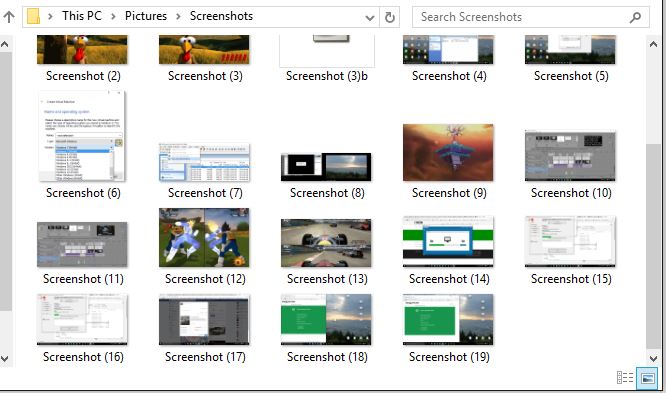
In Windows 10 you can now make screenshots very easily just by using an easy key combination. You press Windows + Print and your screenshot will be saved in your user directory in the folder 'Pictures/Screenshots'. It's quite useful making several screenshots after another.
2: Virtual Drives included!
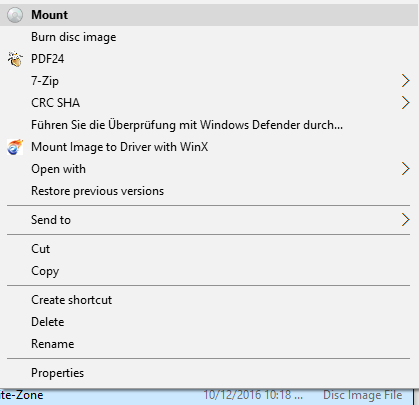
Remember software like Daemon Tools or Virtual Clone Drive? These were quite useful tools if you wanted to avoid burning an ISO image in order to use it on Windows 7 or earlier versions. In Windows 10 you don't need to install any extra tools. You just need to select on ISO file, right-click and select 'Mount'. That's it. A virtual drive will be added with your CD/DVD image. Way easier, all included. You'll noticed if you get back using Windows 7.
3: Control+V in CMD!
 After so many years it's finally possible to use Ctrl+V in the command line. Pasting lines into the black box is now way easier. Going back to Windows 7 or other older Windows version you had to right-click, selecting 'Paste' to paste your clipboard. Now that's just better and faster.
4: Lots of language packs!
Changing the languages of your operating system had never been easier. You can change your Windows 10 easier to any language - even to small ones like Luxembourgish. Just go to Control Panel, 'Language', select the 'idiomas' you want, download them. After that you can easily switch to one of your downloaded languages. You only need to log off and log on again. Back in Windows 7 it was more difficult or even limited to certain version like Enterprise or Ultimate. And the amounts of possible languages are increasing. I remember working in certain companies a language change back in Windows 7 was applied by reinstalling the whole computer... But nowadays with Windows 10, no issue. Just switching to Japanese. As easy as with Android.
5: File Explorer Ribbon Bar
The Ribbon bar was first introduced as a the new view of Office 2007 applications. Some other applications within Windows 7 followed and since Windows 8 it´s also in the Windows Explorer - so jumping from 7 to 10, you will notice and you don´t wanna go back! Also having a graphical view on how fast a file transfer goes makes the new included file manager even better. Not only looks all better.
Anyway...
There are of course many more features in Windows 10 in comparison to Windows 7, but that´s just to name a few which I found were ones people would notice quite quickly. Also easy to get used to that. These examples show that you should not go back to Windows 7, although it´s still a great operating system.
Feel free to comment on if you agree or would have named other examples for reasons not to go back the OS from 2009.
This computer had an incredible amount of Ethernet Adapters listed! Something I've never seen before..
As being confronted with IT issues almost daily there are sometimes cases you haven´t seen in years or you aren´t sure if you have seen them at all! Recently I was asked to check a Danish Windows 10 laptop because despite having WiFi connection the Internet browser couldn´t open any more sites and video streams stopped working.
I checked the network adapters and was quite surprised! There were Ethernet Adapter numbered until 79! And sometimes even numbers were missing and the user had no idea about that! Then I went to the Device Manager to check and "TAP-Win32 Adapter Adapter OAS #22" was one of the many examples I found there. And the list almost did not stop flashing all the time...
Anyway, I had to delete them all manually. All at once didn´t work. Once that was done the Internet connection worked fine again. Wonder why^^.
I suggest a proper virus and malware scan afterwards just to be sure there`s nothing going on anything. A bit online checks mentioned it could might be through some VPN software or even an Office KMS activation...
I recently had a situation where the 2013 Office Suite was unable to be activated. But then I found a great solution...
It was within a bigger environment where a KMS server is active. Usually the activation should run just by plugging your computer into the network for having a connection with the domain. But there was one case where it didn't work once the user was in the company for a few hours.
The user was even working remotely via VPN. But I remember that there was a command to manually force your Office activation through a command. Was a long time ago and I had to look it up. It's this one (run as admin):
cscript "C:\Program Files (x86)\Microsoft Office\Office15\OSPP.VBS" /act
Just make sure that you select the correct path, because it's depending on your Office version and operating system. It's also working with Office14 (version 2010), but not with Office 2007 (Office12).
After you executed this vbs script the confirmation that Office was activated appeared pretty quickly after that. Just make sure you are executing this Visual Basic Script while every program of the Office Suite is closed. Is better for the success of the process.
In my case it was quite efficient and it avoided that the user had to return to the office again and could return working from remote.